QR code stand – guide and settings
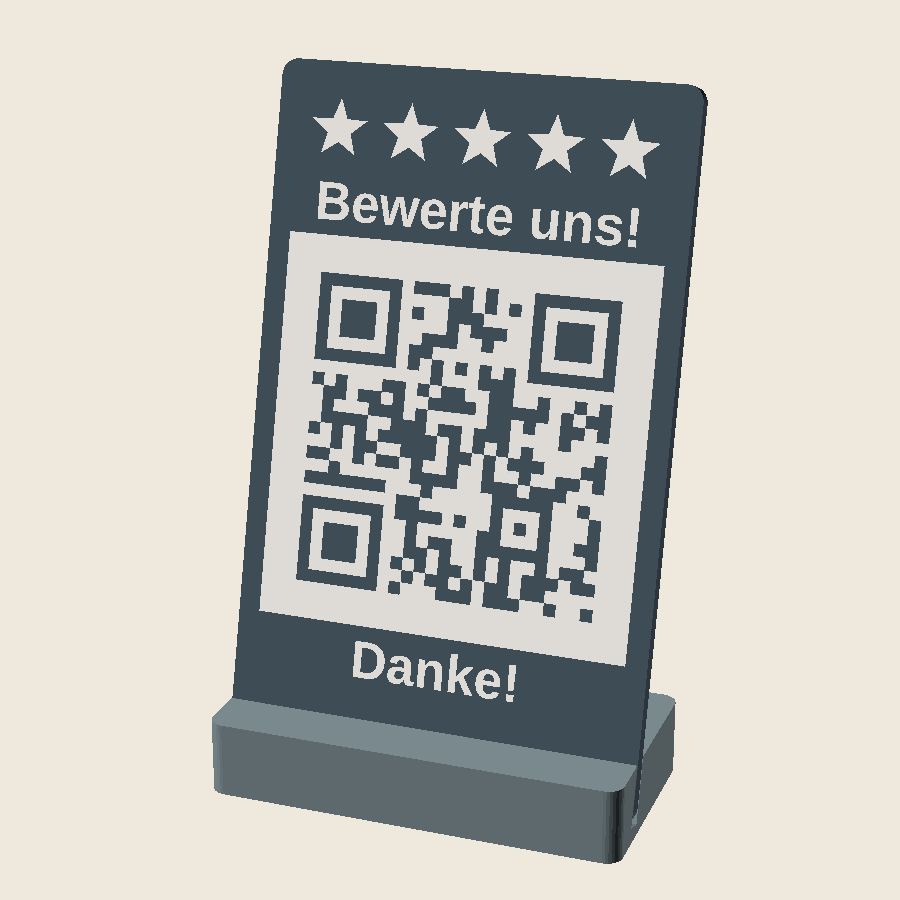
Stand with a QR code for your link, your review page or the guest Wi-Fi – dark modules on a light field so every phone reads it. With text above and below, slanted in its own foot. Two colours flush, or raised for a colour change.
Settings
QR code
- link or text: default https://studio.fomio.de
- line above
- line below: default Scan mich
- code width: default 70.0
- light field: default Flush
Symbol
- symbol: default None
- symbol position: default Row
Stand
- foot: default on
- lean (°): default 15.0
- play in the slot: default 0.3
Code
- error correction: default M
Step by step
- Link and text Enter the link, e.g. your review page. Lines above and below and a symbol such as five stars are optional. The longer the link, the bigger the stand should be.
- Preview and download “Generate preview” calculates the model again. The 3MF holds the colours – in the slicer you assign a filament to each colour; the STL is single-coloured.
- Help Behind the question mark you find this tour and answers to common questions.
Frequently asked questions
I only have one nozzle – does it still work?
Yes: choose “light field: Raised”. In the slicer add a filament change to a light colour at the top of the plate (3 mm).
Which colours scan best?
Dark plate, light field – that is how it is set up. The other way round (light on dark) some phones do not read the code.
How do I put the guest Wi-Fi into the code?
Enter it as text: WIFI:T:WPA;S:network name;P:password;; – the phone then offers to connect.
The code does not scan.
Choose a bigger stand or a shorter link so the modules get bigger. Before printing: look at the preview and scan it from the screen with your phone.