Modular box – guide and settings
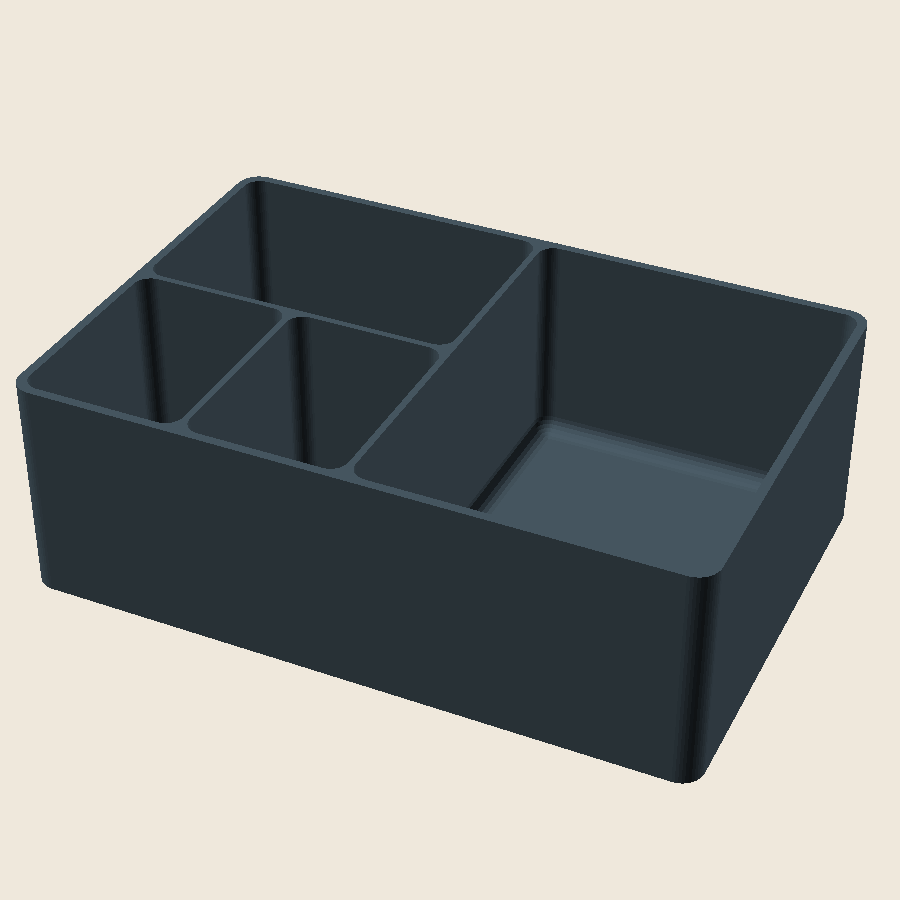
Box with freely divided compartments for desk, drawer and workshop: set the outer size and the compartments (compartment editor in the “Compartments” view), round the corners, compartment edges and floor, choose a wall pattern, a finger grip and scoops. Optionally with a Gridfinity base, stackable and with a lay-on, cap or sliding lid, also with magnets. If the lid does not fit beside the box on the print plate, it goes on a second plate. With Fomio Pro: label plate or paper label holder.
Settings
Box
- width: default 120.0
- depth: default 80.0
- height without lid: default 40.0
Compartments
- Compartments: default h(1:c,1:c,1:c)
- divider thickness: default 1.2
- lower the dividers: default 0.0
- scoop: default None
- scoop radius: default 10.0
Rounding
- outer corners: default 4.0
- compartment edges: default 3.0
- round compartments: default off
- floor fillet: default 0.0
Walls
- wall: default 1.6
- floor: default 1.2
- lower the front wall: default 0.0
Wall pattern
- pattern: default None
- hole size: default 6.0
- spacing: default Normal
- pattern_front: default on
- pattern_back: default on
- pattern_left: default on
- pattern_right: default on
- pattern_floor: default off
Grip
- shape: default None
- grip_front: default on
- grip_back: default off
- grip_left: default off
- grip_right: default off
- position front: default 0.0
- position back: default 0.0
- position left: default 0.0
- position right: default 0.0
- cut the dividers too: default 10.0
- width: default 30.0
- depth: default 12.0
Label
- type (Pro): default None
- text (Pro): default Schrauben
- width (Pro): default 50.0
- height (Pro): default 15.0
- position (Pro): default Center
Gridfinity
- Gridfinity base: default off
- grid cells across: default 2.0
- grid cells deep: default 2.0
- height (x 7 mm): default 6.0
- magnets in the feet: default off
- stacking lip: default off
Stacking and lid
- stackable: default off
- lid: default None
- magnets in the lid: default off
- play: default 0.25
- output: default Auto
Step by step
- Compartments and size This shows the box from above: + divides a compartment, dividers and grips are simply dragged, the bin removes a compartment. Change width, depth and height on the dark labels around the box.
- Settings On the right you set everything else: roundings, wall pattern, grips, lid, Gridfinity base and – with Fomio Pro – a label.
- Preview and download “Generate preview” calculates the model again (with Fomio Pro on every change by itself). Then download it as STL or 3MF.
- Help Behind the question mark you find this tour and answers to common questions.
Frequently asked questions
How do I divide the box?
Open “Compartments” above the stage. Point at a compartment and press +: on the right it divides side by side, below front to back. Drag dividers where you want them; click a size to type it.
The lid does not fit on the plate with the box – what now?
Then the file holds the box only and “Download lid” appears below the download buttons. Print the lid afterwards.
How do I print the modular box?
Without supports, as it lies on the plate; lids lie upside down. PLA or PETG at 0.2 mm layers is fine. Wall patterns are shaped to print without supports.
What is Gridfinity?
An open storage system on a 42 mm grid. With the Gridfinity base the box fits Gridfinity baseplates and combines with other Gridfinity bins.
Which magnets do I need?
Disc magnets 6 × 2 mm. They usually hold by press fit; if loose, a drop of super glue helps. Mind the polarity so box and lid attract.